How to Add Passport Details to Final Cowin Certificate After Using Raise an Issue
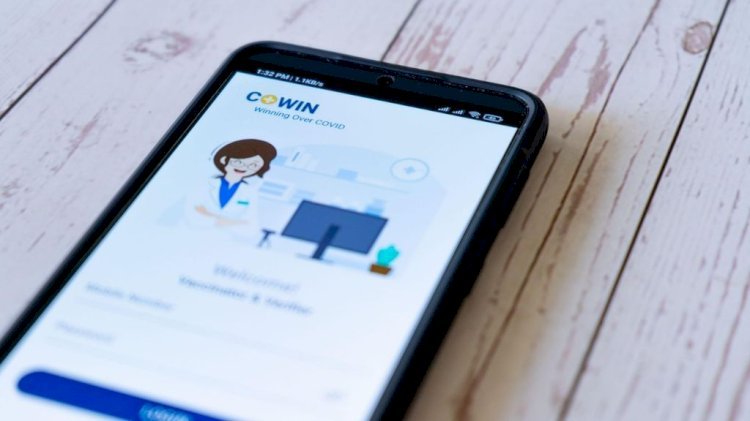
In the wake of the COVID-19 pandemic, digital vaccination records have become essential, especially for international travel. The CoWIN portal serves as India’s official platform for managing vaccination-related details. One crucial aspect of this is ensuring your Cowin certificate includes your passport details, particularly if you plan to travel abroad. If your vaccination certificate was initially issued without a passport number, the Indian government has enabled a correction mechanism via the "Raise an Issue" feature on the portal. This guide walks you through the complete process of updating passport information using your beneficiary ID.
Why is adding passport details important?
A Cowin certificate without passport details may not be accepted by foreign immigration authorities. To ensure seamless travel, your final vaccination certificate must reflect the same name and passport number as your official travel document. This becomes particularly important for countries that check vaccination status as part of visa or entry requirements.
The Indian Ministry of Health and Family Welfare recognised this issue and included the “Add Passport Details” option under the “Raise an Issue” tab to help travellers update their certificate seamlessly.
What is the beneficiary ID?
The beneficiary ID is a unique 14-digit identification number generated for every individual registered on the CoWIN platform. It serves as a reference number for accessing your vaccination records, making updates, and downloading certificates. You will need your beneficiary ID when initiating any correction request, including adding passport details.
You can locate your beneficiary ID by logging in to the CoWIN website or checking your previously downloaded vaccine certificate.
Step-by-step guide to add passport details to your CoWIN certificate
Here’s how to proceed with the update:
Step 1: Visit the official CoWIN website
Go to the CoWIN portal using any web browser. Ensure you are on the correct site to avoid entering your personal data on fraudulent platforms.
Step 2: Log in using your registered mobile number
- Click on the “Sign In/Register” button on the top-right corner.
- Enter your mobile number used during vaccination registration.
- Verify with the OTP received on your phone.
Step 3: Locate your beneficiary
Once logged in, you will see the list of registered beneficiaries under your mobile number. Select the beneficiary (yourself or a dependent) for whom you want to update the passport information.
Step 4: Click on “Raise an Issue”
On the beneficiary’s profile, look for the “Raise an Issue” button.
Clicking this will open a list of actions you can take to make corrections or edits to your vaccination certificate.
Step 5: Select “Add Passport Details”
From the menu, choose “Add Passport Details”.
This option is specifically designed for individuals who want to update their Cowin certificate for international travel.
Step 6: Enter passport number and confirm
You will be prompted to:
- Enter the passport number exactly as it appears in your passport.
- Confirm your beneficiary ID for verification.
- Tick the confirmation box stating that your details are correct.
Make sure to double-check the information before submitting, as any discrepancies might lead to future travel complications.
Step 7: Submit request and download updated certificate
After submission, the request is usually processed within a few hours to a maximum of 24–48 hours.
Once approved:
- Go back to your dashboard.
- Click “Download Certificate” for the updated version containing your passport number.
This updated Cowin certificate will now be valid for travel and can be presented for visa applications or immigration checks.
Common issues and tips
- Name mismatch
If your name on the Cowin certificate does not match your passport (e.g., due to missing middle name), you may need to first use the “Correction in Certificate” option before adding the passport number. - Wrong passport number
You are allowed only one update to your passport details, so ensure you input the correct number. Double-check before submitting. - Multiple beneficiaries on one mobile number
Make sure to select the correct person when updating. Each beneficiary has a unique beneficiary ID, and changes are made per individual record. - Use the same mobile number
Always log in using the mobile number you used at the time of vaccination to ensure your data is correctly linked.
Do’s and don’ts
- Use the official CoWIN website only.
- Ensure your passport number is typed in exactly as shown in your physical passport.
- Always download and verify your updated certificate once the passport detail has been added.
- Do not share OTP or CoWIN login credentials with others.
- Do not try to enter random passport numbers; doing so may result in invalid travel documentation.
Final thoughts
With international travel bouncing back, having an updated and accurate Cowin certificate is more important than ever. The Indian government’s integration of the “Add Passport Details” feature ensures travellers have access to globally recognised vaccination documentation. Using your beneficiary ID, you can make this vital update quickly and efficiently.
By following the steps outlined above, you can ensure that your certificate reflects your correct passport details, eliminating any hurdles during visa applications or travel. Make sure to cross-verify every detail and save a digital and printed copy of your updated certificate for all future travels.
What's Your Reaction?